Smart Vocal & Dialogue Processing
Description:
- Forget everything you know about DynAssistVoiceAssist goes further. Its your smart assistant for clean, consistent vocal and dialogue editing. AI-powered denoising, dereverberation, frequency recovery, leveling, breath and sibilance controlplus many more tools to streamline your daily workflow. Everything stays under your control. Everything can be adjusted with VoiceAssist.
- Clean: No more rerecording or bad audio quality. Start with a clean and dry signal using our Clean Section. Remove reverb and background noise like traffic, fan noise, or other distractionsthanks to VoiceAssists locally running AI model. No cloud. No upload. Just clean audio, right on your machine. Muddy vocals caused by poor mic positioning? No problem. Bring back clarity with our Recover Highs feature. A real game changer for fast and professional voice editing. Your clients will be amazed by your work.
- Dynamics: Every word and syllable countswhether its for dialogue or vocals. Get crystal-clear voice tracks with the VoiceAssist Dynamics Section. It analyzes your performance and writes a custom volume automationtailored to your settings. Want a subtle volume ride that no one will notice? Use the High Speed mode. Need aggressive leveling for rap vocals? Switch to Fast Speed, and your voice will cut throughclear and consistent. Work in LUFS-I or LUFS-S with integrated peak control to trigger your compressor only when you really need it.
- Lowend: Missing that deep low end to give your voice recordings more weight? VoiceAssist helps you recover low-end energy for a fuller, more impactful sound. The low-end resonance reduction detects narrow peaks automatically, so you can dial in the right amountno need to hunt them down manually. The pitch-based low cut tracks the lowest pitch in your recording and adjusts the cutoff point automatically.
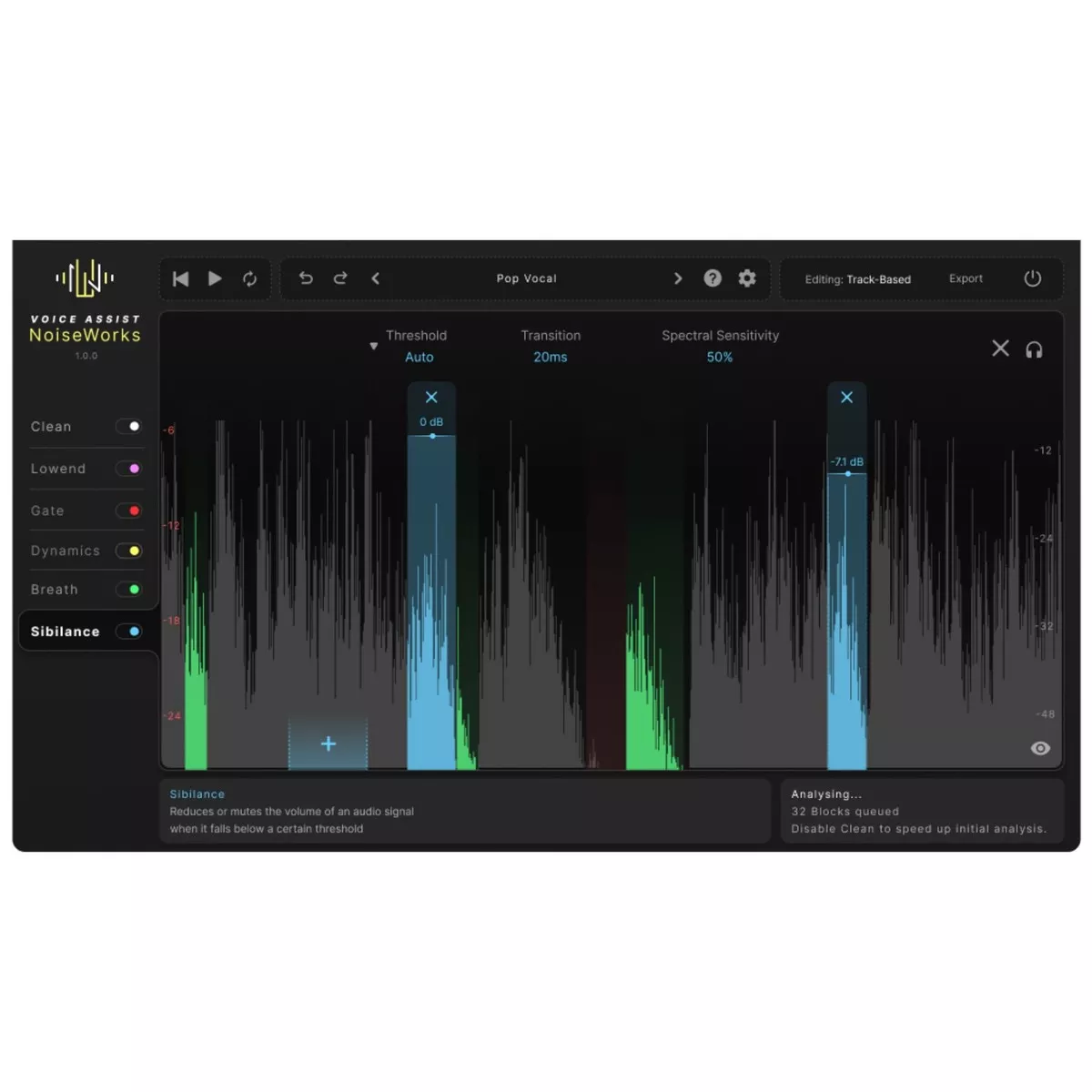
- Breaths And Sibilance: Harsh sibilance or sharp breaths can make your mix sound unprofessional. VoiceAssist gives you control with intelligent detection and flexible editing. Automatically reduce breaths and sibilance with adjustable intensity. Fine-tune each detected section individually if needed. Choose between overall volume reduction or spectral processing that targets only the harsh parts. All regions are fully customizableadjust boundaries, add or remove with ease. Keep your vocals clean, natural, and mix-ready.
- Gate: The content-aware voice gate only works when it really has tono more over-processing or unnatural cuts. Its designed to keep your recordings clean and consistent, even across changing environments, comped takes, or varying mic positions. Instead of relying on a fixed threshold, the gate uses intelligent voice and silence detection to react only when needed. This ensures a transparent result without the typical artifacts of aggressive gating. If you prefer more control, you can always switch to a traditional threshold-based mode. Adjustable boundaries let you fine-tune the gates behavior to match your specific recording situation.
Requirements:
Mac
- Support for Apple Silicon (M1, M2, M3all supported)
- Support for Mac Intel is not available yet. It will be added in an upcoming update.
- macOS 12.0 or later
- Minimum 16 GB RAM
Windows
- 64-bit system
- Windows 10 (minimum version 1909)
- Intel i5 or equivalent AMD processor
- Minimum 16 GB RAM
- Dedicated graphics card required (NVIDIA or AMD), minimum 3GB VRAM
General
- Plug-in formats: VST3, AU, AAX
- ARA Supported DAWs (full versions)
- Pro Tools (version 2024.10 or later)
- Cubase
- Nuendo
- Reaper
- Studio One
- LUNA will be added in a later update.
- Please note: On Windows systems, a dedicated NVIDIA or AMD graphics card is required. Integrated graphics (such as Intel UHD or Intel Iris Xe) are not supported.
- This means that your computer must have a separate graphics card from NVIDIA or AMD installed. If your system only uses the graphics chip that is built into the CPU, VoiceAssist will not run correctly on Windows.
Most desktop PCs with a gaming or workstation configuration meet this requirement. Many standard office laptops, however, do not.
If you are unsure, you can check your graphics hardware in the Windows Device Manager under Display adapters or use the free trial to verify compatibility.